
This is my first attempt at a tutorial, so please be gentle in your comments.  This is probably best viewed in HD since some of the details are a little hard to make out in the little preview window below.
Many have asked me how I do my smooth unfolds. Well, here you go. This was recorded at 3fps and played back at 15fps (5x normal speed), so some parts are going to go a little fast, but hopefully the information comes across well enough. Let me know if it's going a little too fast, and I'll see about slowing it down.
The model used is the Predator mask provided by Nintendude. Original modeller is Spartan857. I chose to do this model as opposed to one more Halo-related, because the geometry was interesting, but also simple enough to showcase the entire unfold process from start to finish without insane amounts of video, since unfolding can take a long time.
(Part 2 narration forthcoming)
Note:
It's not included in the video, but I swapped pages between the bottom jaw line and the left cheek. Makes no difference as far as the build goes, but it's more for aesthetics.
Note 2:
In hindsight, it was a good thing I left some breathing room when I arranged the parts. I just went to go print this out, and it tells me that it's outside the print area. I go to check my settings, and lo-and-behold...it was still in A4! I always forget to check to make sure it's in letter format. That, and to turn on edge id again...which I nearly forgot to do as I type this. Lol.
Note 3:
Something experimental I'm doing with this unfold that isn't in the video (don't worry, it's not essential to unfolding) is a coloring scheme. I've already established for myself that green = valley fold. Now, I'm trying out gray = joining seam only, do not fold. Why, you ask? Some pieces are just too big to keep as one piece on the page. Others, like the split down the middle of the dome, are compound curves and don't need a hard folded edge (due to the tabs) and just need to be glued together as flat as possible. When I'm ready to release this model, it will include these color changes.
This is probably best viewed in HD since some of the details are a little hard to make out in the little preview window below.Many have asked me how I do my smooth unfolds. Well, here you go. This was recorded at 3fps and played back at 15fps (5x normal speed), so some parts are going to go a little fast, but hopefully the information comes across well enough. Let me know if it's going a little too fast, and I'll see about slowing it down.
The model used is the Predator mask provided by Nintendude. Original modeller is Spartan857. I chose to do this model as opposed to one more Halo-related, because the geometry was interesting, but also simple enough to showcase the entire unfold process from start to finish without insane amounts of video, since unfolding can take a long time.
(Part 2 narration forthcoming)
Note:
It's not included in the video, but I swapped pages between the bottom jaw line and the left cheek. Makes no difference as far as the build goes, but it's more for aesthetics.
Note 2:
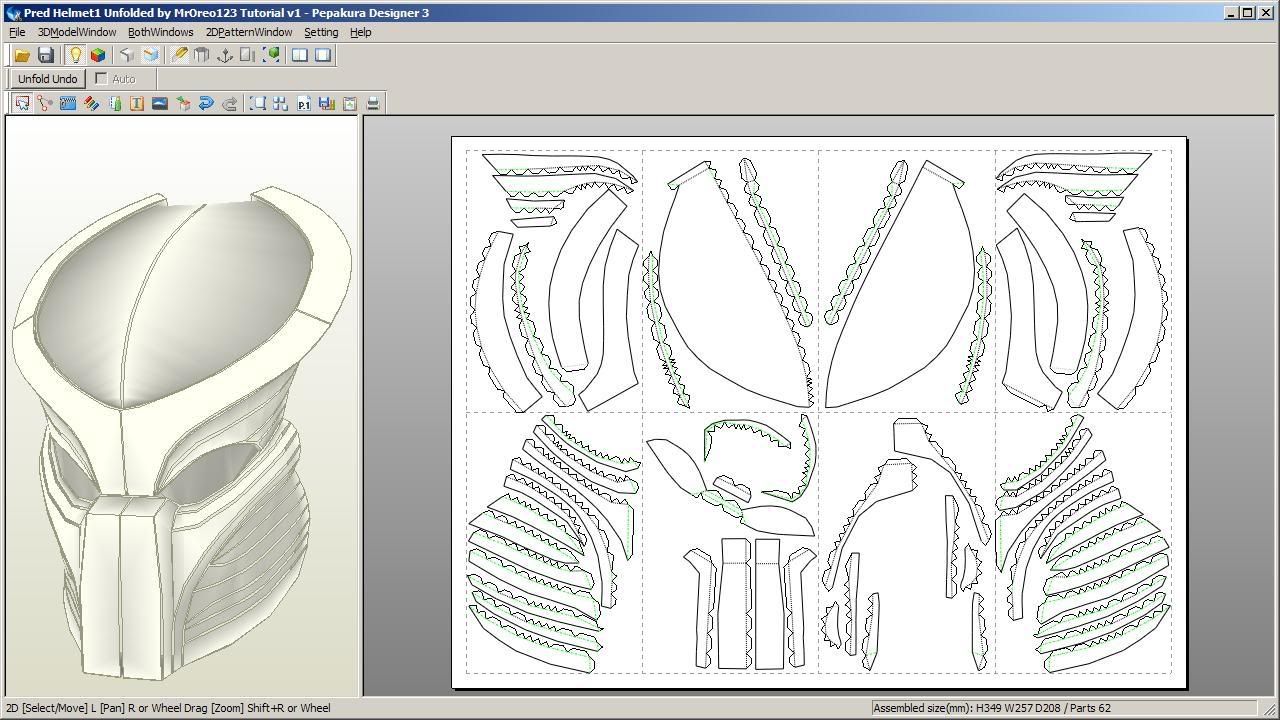
In hindsight, it was a good thing I left some breathing room when I arranged the parts. I just went to go print this out, and it tells me that it's outside the print area. I go to check my settings, and lo-and-behold...it was still in A4! I always forget to check to make sure it's in letter format. That, and to turn on edge id again...which I nearly forgot to do as I type this. Lol.
Note 3:
Something experimental I'm doing with this unfold that isn't in the video (don't worry, it's not essential to unfolding) is a coloring scheme. I've already established for myself that green = valley fold. Now, I'm trying out gray = joining seam only, do not fold. Why, you ask? Some pieces are just too big to keep as one piece on the page. Others, like the split down the middle of the dome, are compound curves and don't need a hard folded edge (due to the tabs) and just need to be glued together as flat as possible. When I'm ready to release this model, it will include these color changes.
Last edited by a moderator:


